

Use an online PDF-to-EPUB converter with AI OCR and structure reconstruction, such as Convert2EPUB, when your source file is scanned, has multiple columns, or contains tables and equations. That's the fastest route to a reflowable file that actually works on a Kindle or Kobo.
The decision tree is simple:
- Clean, text-based PDF with basic paragraphs? A free conversion usually handles it fine.
- Scanned pages, dense tables, math notation, or a two-column academic layout? You need OCR plus a Pro-level structure reconstruction pass.
Before committing credits to a long textbook, run a 1 to 3 page sample conversion first. A quick five-check test (searchable text, resizable font, working table of contents, separated footnotes, intact tables) tells you in under two minutes whether the tool preserved what matters.
Key Takeaways
Reflowable EPUBs from scanned or layout-heavy PDFs require OCR plus AI-based structure reconstruction, not just character recognition.
| Point | Details |
|---|---|
| Check the source type first | Try selecting text in the PDF; if nothing highlights, it's image-based and needs OCR. |
| Test before you pay | Convert a 1 to 3 page sample and run the five checks before converting a full document. |
| Structure reconstruction matters most | Headings, footnotes, tables, and formulas need a dedicated reconstruction stage after OCR, not just text recognition. |
| Match the tool to the document | Simple text PDFs handle fine on standard settings; scanned, multi-column, or equation-heavy files need Pro-level AI OCR. |
| Convert2EPUB fits complex documents | Its free sample and Pro mode let you test structure preservation on tables and formulas before spending credits. |
Table of Contents
- Calibre PDF to EPUB Conversion: Why an Online AI Service Wins
- How Do You Convert a PDF to EPUB Step by Step?
- Why Do PDF-to-EPUB Conversions Break, and How Do You Fix Them?
- When Should You Pay for Pro Instead of a Free Conversion?
- Setting Up Calibre for PDF Conversion Work
- Getting the Most Out of Your Conversion Settings
- Fixing Formatting Problems After Conversion
- What Causes the Most Common Calibre Conversion Errors?
- A Publisher's Note on What Actually Breaks
- Try a Free Sample Before You Commit to a Full Conversion
- Frequently Asked Questions
- Sources
Calibre PDF to EPUB Conversion: Why an Online AI Service Wins
Converting a PDF isn't one job, it's two. First, the machine has to figure out what text is even on the page. Then it has to figure out how that text is organized. Miss either step and you get an EPUB that's technically readable but practically useless: a wall of text with no headings, footnotes bleeding into paragraphs, and tables that turn into gibberish.
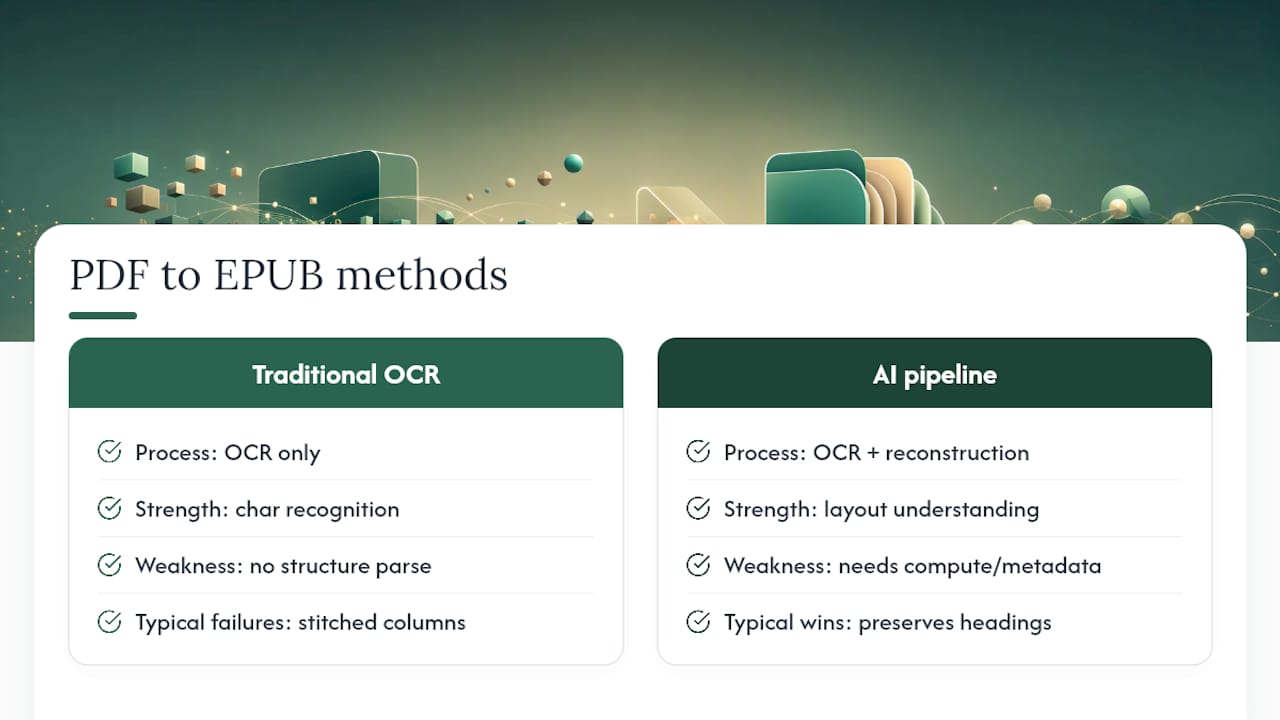
Text-based vs. image-based matters more than people think. A text-based PDF, one exported from Word or LaTeX, already has a text layer a converter can extract directly. A scanned PDF is just a photograph of a page. There's no text to grab, only pixels. That file needs optical character recognition before anything else can happen, and skipping that step is the single most common reason a "converted" EPUB turns out to be a stack of uneditable images.
Here's where it gets interesting. Recognizing characters is only half the job. A PDF-to-EPUB conversion of a scanned document has to run OCR first, then a separate reconstruction stage that rebuilds headings, footnotes, tables, and correct reading order. Plenty of tools stop after the OCR step. That's why you'll open a "converted" file and find the chapter titles formatted exactly like body text, or a footnote sitting in the middle of a sentence where it was physically printed on the page.
Traditional OCR engines are excellent at recognizing individual characters. They're notably weaker at understanding structure. Feed a traditional OCR tool a two-column journal layout, and it often reads straight across both columns, stitching unrelated sentences together into nonsense. Feed it a table, and the rows and columns can collapse into a jumble of numbers with no relationship to each other. Feed it a mathematical formula, and you'll often get scrambled Unicode symbols instead of a real equation.
This is where multimodal AI changes the outcome. Instead of scanning text line by line, an AI-based pipeline can render each page as an image and use a vision-language model to interpret it the way a human eye would: recognizing that a block of numbers is a table, that a cluster of symbols is an equation, and that column one ends before column two begins. That's the difference between a converter that reads and one that understands.
Calibre's desktop conversion pipeline does offer tunable settings, including a line-unwrapping factor and regex-based header and footer removal, and these can genuinely help with a straightforward text PDF. But Calibre's own documentation is candid that these controls are technical, manual, and often insufficient once a document gets scanned or structurally complex. That's precisely the gap an AI-OCR-first online service is built to close.
How Do You Convert a PDF to EPUB Step by Step?
Getting this right on the first attempt saves you from burning through credits on a document that needed different settings. Here's the order that actually works:
- Check the source file first. Try selecting text in the PDF. If you can highlight and copy words, it's text-based. If nothing selects, or the "text" is really a photograph of a page, it's image-based and needs OCR.
- Pull a short sample. Grab the first three to five pages, ideally including a table, a footnote, or an equation if your document has them. This is your test batch.
- Upload and set your options. Choose the correct OCR language, turn on Pro or advanced recognition if the sample includes tables or formulas, and pick an output profile matched to your device (Kindle formats differ from Kobo formats in a few meaningful ways).
- Preview before you commit. Open the sample EPUB and run the five checks: search for a specific word, bump the font size up and down to confirm reflow, tap through the table of contents, confirm footnotes sit separately from body text, and look closely at any table or equation.
- Iterate if something's off. If a table collapsed or a formula garbled, that's your signal to switch to Pro-level OCR or reach out to support before converting the full document.
Pro Tip: Run your sample on the ugliest page in the document, not the cleanest one. If your PDF has one brutal table buried on page 40, test that page specifically. A converter that handles your easiest content perfectly can still choke on the one page you actually care about.
Once the sample passes all five checks, you can convert the full file with confidence that credits won't be wasted on a bad result.
Why Do PDF-to-EPUB Conversions Break, and How Do You Fix Them?
Most conversion failures fall into a handful of repeatable patterns, and each one has a specific fix.
The EPUB looks fine but you can't search it, and pages seem "frozen." This almost always means OCR never ran, and you're looking at an image pretending to be text. Check that OCR was actually enabled for the file, not just assumed. Scanned PDFs need it explicitly turned on in most tools.
Paragraphs break mid-sentence, with page numbers or repeated headers jammed into the body text. This is a classic sign of header and footer contamination. Repeated headers and footers confuse the paragraph-unwrapping logic that reassembles broken lines into flowing text. Tools that offer regex-based header and footer removal let you strip these before reconstruction, which cleans up the noise considerably.
Sentences read like they were shuffled. That's a two-column reading-order failure, common in academic papers and magazine-style layouts. A converter reading straight across the page instead of down one column and then the next will braid unrelated sentences together. This is exactly the failure that structure-aware AI processing is built to solve, since it interprets column boundaries visually instead of reading left to right blindly.
Tables render as loose numbers, or formulas turn into strange symbols. Here you have three honest options: accept a simplified but readable version, request Pro-level AI reconstruction that treats tables as actual tables and formulas as proper notation, or manually clean up the specific problem elements after conversion.

Pro Tip: If a table only has a couple of columns and simple values, don't automatically pay for Pro. Simple tables often survive standard conversion just fine. Save Pro credits for the genuinely complex stuff.
When Should You Pay for Pro Instead of a Free Conversion?
Some documents are simply built differently, and free-tier conversion was never going to handle them well. If your file falls into one of these categories, budget for Pro from the start:
- Academic journal articles with citations, footnotes, and multi-column layouts
- STEM textbooks packed with equations, diagrams, and labeled figures
- Technical manuals with numbered tables and cross-references
- Scanned historical documents with inconsistent print quality
- Long reports containing dozens of data tables
The smartest habit here costs you nothing: always run a free sample on a handful of pages before buying credits or converting the full book. A free sample conversion shows you exactly how a service handles your specific tables, formulas, or column layout before you spend a cent on the rest.
There's a privacy dimension worth weighing too. If your documents legally or contractually cannot leave your device, a local tool is your only option, but local tools tend to lose structural accuracy compared with cloud-based AI pipelines. That's a real tradeoff between privacy and output quality, not a false choice, and it's worth being honest with yourself about which one matters more for a given document.
Setting Up Calibre for PDF Conversion Work
Calibre installs as a free desktop application on Windows, macOS, and Linux, and it functions primarily as an ebook library manager with conversion built in as one feature among many. After installation, the main window organizes around your book library: a central grid of covers, a metadata panel on the right, and a toolbar across the top with the core actions, Add Books, Convert Books, and Edit Metadata, front and center.
Importing a PDF is straightforward. Clicking "Add Books" opens a file browser where you select your PDF, and Calibre adds it to your library shelf alongside any other titles you're managing. From there, selecting the file and clicking "Convert Books" opens the conversion dialog, where you set your input format (already detected as PDF) and choose EPUB as your output format from the dropdown in the top right.
This library-first design is worth understanding because it shapes how the whole tool behaves. Calibre isn't a single-purpose converter you open, use once, and close. It's built for people managing dozens or hundreds of ebooks who need conversion as one piece of a bigger workflow: tagging, organizing by series, syncing to a device, and converting between formats as needed. If your only goal is turning one scanned technical PDF into a readable EPUB today, that broader design adds steps you don't need. It's a reasonable trade for a hobbyist book collection and a less practical one for a single technical document with equations and tables, where an online AI-OCR service gets you a usable file faster and with less manual cleanup afterward.
Getting the Most Out of Your Conversion Settings
The conversion dialog's left sidebar lists several categories worth understanding before you click "OK": Page Setup, Structure Detection, and Output Options among them. Page Setup controls the input page size and margins Calibre assumes the PDF uses, which affects how text gets extracted. Getting this wrong on an unusual page size can throw off spacing throughout the whole document.
Structure Detection is where the real work happens, and where the limitations show up fastest. This is where the line-unwrapping factor lives, the setting that tells Calibre how aggressively to merge broken lines back into flowing paragraphs. Set it too low and paragraphs stay choppy; set it too high and it can merge lines that were never meant to join, especially in tables or numbered lists. This section also holds the regex-based search-and-replace tools for stripping repeated headers, footers, and page numbers before the text gets reassembled.
Output Options lets you pick a device profile, Kindle, Kobo, or generic EPUB reader, which adjusts formatting assumptions like default font handling and navigation structure.
Here's the honest limitation: these settings are manual, technical, and tuned through trial and error on each specific document. A line-unwrapping factor that works for a simple report might mangle a table on the very next page of the same file. For a clean, single-column, text-only PDF, spending ten minutes dialing in these settings can produce a solid result. For a scanned document, a two-column academic layout, or anything with equations, you're fighting a manual process that AI-based structure reconstruction handles automatically by recognizing what a table or formula looks like rather than applying a blanket rule to every line on the page.
Fixing Formatting Problems After Conversion
Calibre's built-in "Edit book" tool opens the converted EPUB's internal files directly, letting you adjust metadata, fix formatting, and swap the cover image without starting the conversion over. Metadata editing covers title, author, series information, and language tags, all accessible through a dedicated metadata panel that writes changes directly into the file.
Cover image adjustment works similarly: you can select a new image file to replace whatever Calibre pulled from the PDF (which is often nothing, or the wrong page entirely, since PDFs don't usually flag a specific page as a "cover"). Fixing formatting errors is where things get more hands-on. The "Edit book" interface exposes the raw HTML and CSS inside the EPUB file, so a misplaced heading tag or a paragraph that didn't break correctly can, in theory, be corrected by editing markup directly.
That's a meaningful skill requirement. Fixing a broken table in raw HTML means understanding how EPUB table markup works, finding the specific broken tags among potentially hundreds of files, and testing your fix by re-opening the book. For a single garbled table, that might take a few minutes if you know HTML. For a technical document where formulas and tables broke throughout, it can turn into hours of manual repair for a result an AI structure-reconstruction pass would have gotten right on the first attempt, at the point of conversion rather than after the fact.
What Causes the Most Common Calibre Conversion Errors?
A few failure patterns show up over and over in PDF-to-EPUB conversions, and they're worth recognizing by name.
Fonts not embedding happens when a PDF references a font that either isn't licensed for embedding or wasn't properly included in the source file. The result is a converted EPUB that displays in a generic fallback font instead of the original typeface, which is usually a cosmetic issue rather than a functional one, but noticeable on technical documents that rely on monospace fonts for code or specific symbols for math.
Images missing typically traces back to how the PDF stored them. Vector graphics or oddly compressed image formats sometimes don't survive extraction, leaving blank spaces where a diagram used to be. This is especially common with scientific figures and charts that were embedded as complex vector objects rather than simple bitmaps.
Incorrect formatting, meaning misplaced headings, merged paragraphs, or scrambled reading order, usually comes back to the same structure-detection limitations already covered: the line-unwrapping factor guessing wrong, or a multi-column layout getting read in the wrong order.
The pattern across all three is consistent. These aren't random glitches, they're predictable consequences of a conversion process that treats a PDF as a stream of text and images rather than a page with real visual structure. That's the exact gap AI-based reconstruction, reading pages the way a vision-language model interprets an image, is built to close.
A Publisher's Note on What Actually Breaks
The most surprising failures I've seen aren't the scanned journal articles everyone expects trouble from. They're the deceptively clean-looking PDFs, a Word export with a table that looks simple until you notice it has merged cells spanning two rows. Standard extraction sees that and produces three columns of nonsense where there should be two.
Working closely with document conversion at Convert2EPUB, the fixes that stick are rarely dramatic. They're structural: reading the page as an image first, then reasoning about what's actually on it. If you're staring down a document with tables or equations, don't guess. Convert a few pages first and look at the result before you commit to the whole file.
Try a Free Sample Before You Commit to a Full Conversion
Convert2EPUB is built around the exact two-stage process this article just walked through: AI OCR that actually reads scanned pages, followed by structure reconstruction that rebuilds headings, footnotes, tables, and equations instead of leaving you with a wall of unstructured text.
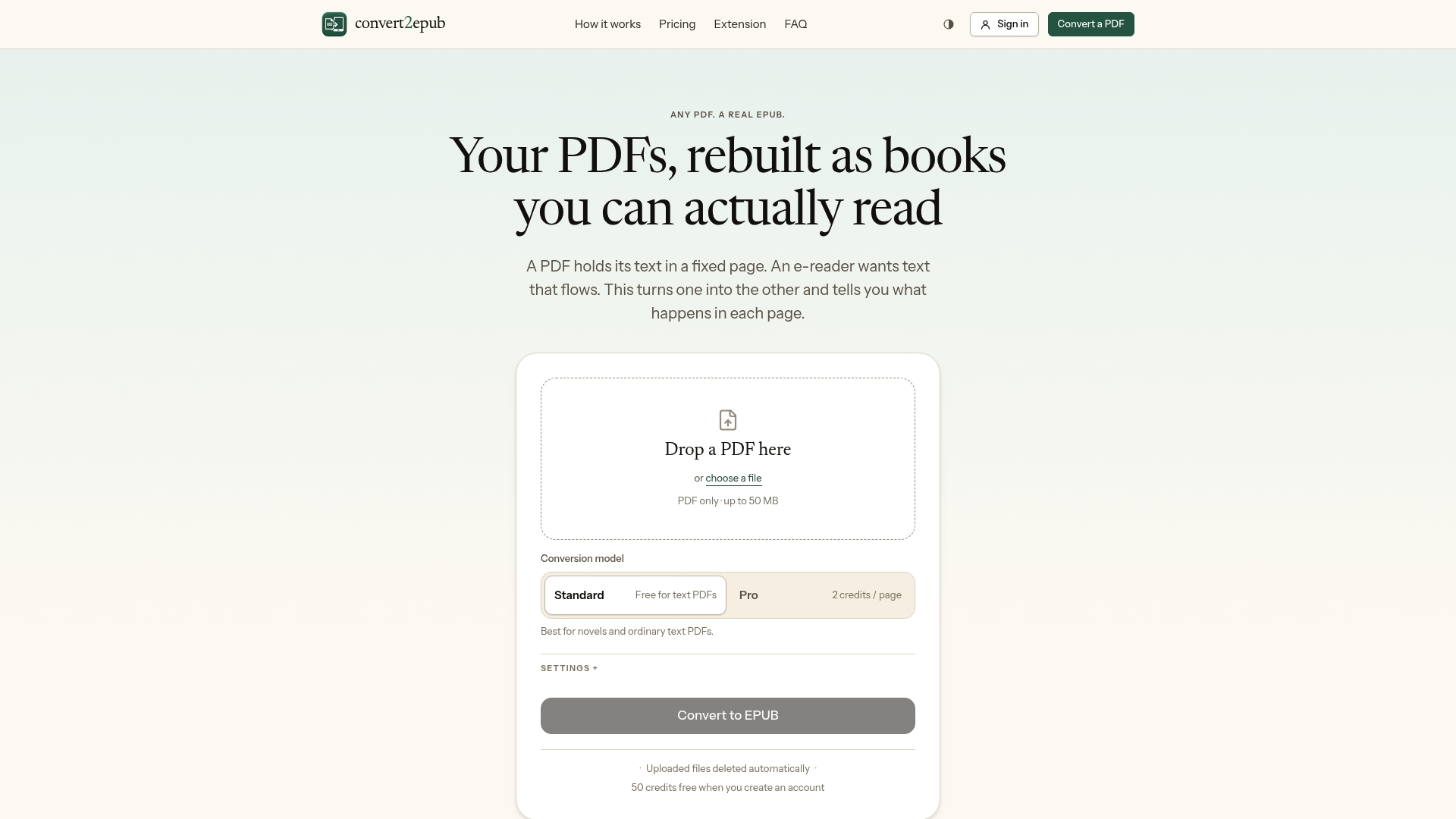
Every conversion starts free. Upload one to three pages, and you'll see exactly how the tool handles your specific tables, formulas, or column layout before spending anything. If your sample comes back clean, run the full document the same way. If it's a technical file with equations, dense tables, or a scanned original, switch to Pro mode, which applies the same AI-based reconstruction that handles LaTeX formulas and semantic tables rather than flattening them into broken text. Credits are sold in packs and only spent on the pages you actually convert, so there's no subscription clock running in the background. Start with a sample conversion at Convert2EPUB and see your own document rendered before you decide on Pro.
Frequently Asked Questions
Does "calibre pdf to epub" mean the desktop app or an online converter? In practice, most readers dealing with scanned or technical PDFs get better results from an online AI-OCR service. Desktop tools require manual settings tuning per document, while an online service like Convert2EPUB automates OCR and structure reconstruction in one pass.
Do I need Pro or OCR for every PDF conversion? No. A clean, text-based PDF with simple paragraphs usually converts fine on a free tier. Pro-level OCR and structure reconstruction become necessary for scanned pages, tables, equations, and multi-column layouts.
How do I know if my PDF is scanned or text-based? Try selecting text inside the PDF with your cursor. If words highlight normally, it's text-based. If nothing selects, or you're really looking at a photograph of a page, it's image-based and needs OCR.
What should I check in a converted EPUB before trusting it? Run five checks: search for a specific word, resize the font to confirm the text reflows, click through the table of contents, verify footnotes sit apart from body text, and inspect any tables or formulas for accuracy.
Why do two-column PDFs convert so badly? Many converters read straight across the page instead of down one column at a time, stitching unrelated sentences from both columns together. AI-based tools that interpret page layout visually handle column order correctly.
Is it worth paying for Pro on a document with just one complicated table? Usually yes, if that table matters to you. Run a free sample on that specific page first. If the free result mangles the table, Pro-level reconstruction is worth it for that one section rather than risking the whole document.