

Install a client-side browser extension. That's the fastest, most private way to save a single webpage as EPUB, and it's what most readers should try first. For a one-off public article you don't mind sending to a server, a paste-URL online converter works fine. For batching a dozen URLs into one book with reliable chapter order, reach for a command-line tool instead. If your source is a PDF rather than a live webpage, that's a different job entirely, and Convert2epub handles that side of things with OCR built in.
- Single article, fast: browser extension (client-side, keeps you logged in)
- One-off public page, no extension available: paste-URL converter
- Multiple URLs into one book: CLI tool with Pandoc
- PDF or scanned document: Convert2epub
Key Takeaways
The right method for saving a webpage as EPUB depends on whether the page is private, public, or one of many you're batching into a single book.
| Point | Details |
|---|---|
| Start with an extension | Client-side extensions keep sessions local and handle logged-in or subscriber pages best. |
| Reserve paste-URL for public pages | Server-side converters are fast but can expose the target URL to a proxy for blocked sites. |
| Script your batches | CLI tools with Pandoc produce reproducible, correctly ordered multi-chapter books from a URL list. |
| Fix metadata in Calibre | Correct titles, covers, and broken tables of contents after conversion, not before. |
| Use Convert2epub for PDFs | Its OCR and Pro mode handle scanned documents and complex layouts that webpage tools can't touch. |
Table of Contents
- How to Save a Webpage as EPUB Using a Browser Extension
- Online Paste-URL Converters: How They Work and What Gets Lost
- CLI and Batch Conversion for Multiple Webpages
- How Do You Build a Properly Ordered Multi-Page EPUB?
- Client-Side vs. Server-Side: Which One Protects Your Privacy?
- Fixing Common EPUB Conversion Problems
- Author Note: Where Each Method Actually Fits
- Try Convert2epub for PDF and OCR-Heavy Conversions
- Frequently Asked Questions
- Sources
How to Save a Webpage as EPUB Using a Browser Extension
A extension does the extraction inside your browser, which means it can see pages you're logged into without sending anything to a server. Tools like webpagetoepub's webextension run entirely client-side, using a Readability-style parser to strip navigation, ads, and comment sections down to the actual article.
The single-page flow is short:
- Install the extension and open the article you want.
- Click the extension icon. It scans the page and shows detected title, author, and estimated reading time.
- Fix any metadata that looks wrong, then click download.
- The EPUB lands in your downloads folder, ready to load onto a Kindle or Kobo.
For a multi-chapter book, most extensions offer a "build a book" mode: you add several URLs (or import a saved list), drag them into the order you want, set a book title, then generate one EPUB with each page as its own chapter.
These extensions need permissions like <all_urls>, downloads, and storage. That's not overreach, it's the webextension repo docs explaining that the extension needs host access to read the page, fetch embedded images, and save the finished file to disk.
Some pages block script injection outright, and the extension simply can't run there, according to EPUB Creator's documentation. When that happens, open developer tools, copy the article's rendered HTML into a local file, and convert that file instead.
Pro Tip: Always check the metadata preview before downloading. Extensions guess the title and author from page markup, and a quick manual fix here saves you from an EPUB titled "Untitled Document 47" on your reader's home screen.

Online Paste-URL Converters: How They Work and What Gets Lost
Paste-URL converters skip installation entirely. You paste a link into a text box, the server fetches the page, strips it down, and hands you back a download. No browser extension, no setup, works from a phone.
The flow is simple: paste the URL, click convert, wait a few seconds, download the file. Behind that simplicity, a server is doing the fetching, which comes with real trade-offs.
- Ads, tracking scripts, and interactive forms get stripped out along with the clutter you didn't want anyway.
- Embedded video, some dynamic JavaScript content, and interactive widgets usually don't survive the conversion.
- Pages behind a login wall won't convert correctly, since the server has no access to your session.
- When a target site blocks direct server requests, some converters route through a proxy, and that sends the page's URL to a third party you didn't choose.
Use this method for quick, public pages, recipe blogs, news articles, blog posts, especially when you're on a phone or a locked-down work computer where you can't install extensions.
CLI and Batch Conversion for Multiple Webpages
If you're building a reading list of ten or twenty articles into one EPUB, a command-line tool beats clicking through a browser every time. url2epub is a Python tool that fetches each page, extracts the readable content, and packages everything through Pandoc into a single EPUB or PDF.
- Create a plain text file with one URL per line, in the order you want chapters to appear.
- Run the tool against that list, setting flags for output title, file path, and format (EPUB versus PDF).
- Let it fetch, extract, and embed images automatically, then check the finished file.
CLI tools matter for two things: reproducibility and scale. A script run against the same URL list produces the same book every time, which matters if you're rebuilding a "best of" collection monthly. Expect dependencies like Pandoc for document generation and an extractor (Defuddle or Readability-based) for pulling clean article text; some tools even auto-route tricky sites like WeChat articles to specialized parsers, per url2epub's documentation.
Pro Tip: Keep your URL list as a checked-in text file rather than a pile of open browser tabs. It's the difference between a five-minute rebuild and re-hunting for twenty links six months from now.
How Do You Build a Properly Ordered Multi-Page EPUB?
Chapter order is the most common thing that goes wrong. In an extension's build-a-book mode, drag entries into place before generating. For CLI builds, order comes straight from your text file, top to bottom, which is why maintaining a pre-ordered URL list beats juggling open tabs.
- Most tools auto-generate a table of contents from page headings, but check it. Missing or duplicate headings can produce a broken TOC.
- Set title, author, and cover manually if the source pages don't carry that metadata cleanly.
- Calibre remains the simplest free tool for fixing metadata, adding a cover, or repairing a TOC after the fact.
Pro Tip: Load the finished EPUB on your actual e-reader, not just a desktop viewer, before calling it done. Chapter breaks and TOC links sometimes render differently on Kindle firmware than they do in a browser preview.
Client-Side vs. Server-Side: Which One Protects Your Privacy?
Client-side conversion happens entirely inside your browser. Your cookies, login sessions, and browsing history never leave your device, which is exactly why extensions can open subscriber-only or paywalled pages that a server-side tool can't touch, since server-side viewers simply have no access to those sessions.
Server-side conversion is different: you hand a URL to a remote server, and that server fetches the page on your behalf. Some converters fall back to third-party proxies when a site blocks direct requests, and that proxy sees the URL you submitted, along with whatever content sits behind it.
- Use client-side extensions for anything behind a login, a paywall, or a private link.
- Use server-side, paste-URL converters only for public content you'd be comfortable sharing with a stranger.
- If you're unsure which category a page falls into, default to client-side. It's the safer assumption.
Convert2epub's own extension follows the client-side model for webpages, while its web-based converter handles the server-side, PDF-focused side of the job.
Fixing Common EPUB Conversion Problems
Most conversion failures fall into four buckets, and each has a quick fix.
- Missing images: switch to a client-side extension, since some images are protected behind login walls a server can't reach.
- Garbled text or wrong encoding: save the source HTML with a UTF-8 meta tag, or run it through a tool that accepts an explicit encoding flag.
- Page refuses to convert: open dev tools, copy the rendered article HTML into a local file, and convert that file directly, since some pages actively block script injection.
- Broken metadata or TOC: open the finished EPUB in Calibre and fix title, author, cover, and chapter headings by hand.
Author Note: Where Each Method Actually Fits
For a single article, grab an extension. For a batch of links, script it with a CLI tool. When the source is a PDF, especially a scanned one full of tables or equations, that's a different problem, and it's where Convert2epub's OCR and Pro mode do the real work. Convenience and privacy pull in opposite directions here, and the right method depends on which one you need more.
Try Convert2epub for PDF and OCR-Heavy Conversions
Webpages aren't the only thing worth turning into an EPUB. Textbooks, scanned reports, and lecture PDFs sit fixed and unreadable on most e-readers, and that's the exact problem Convert2epub was built to solve.
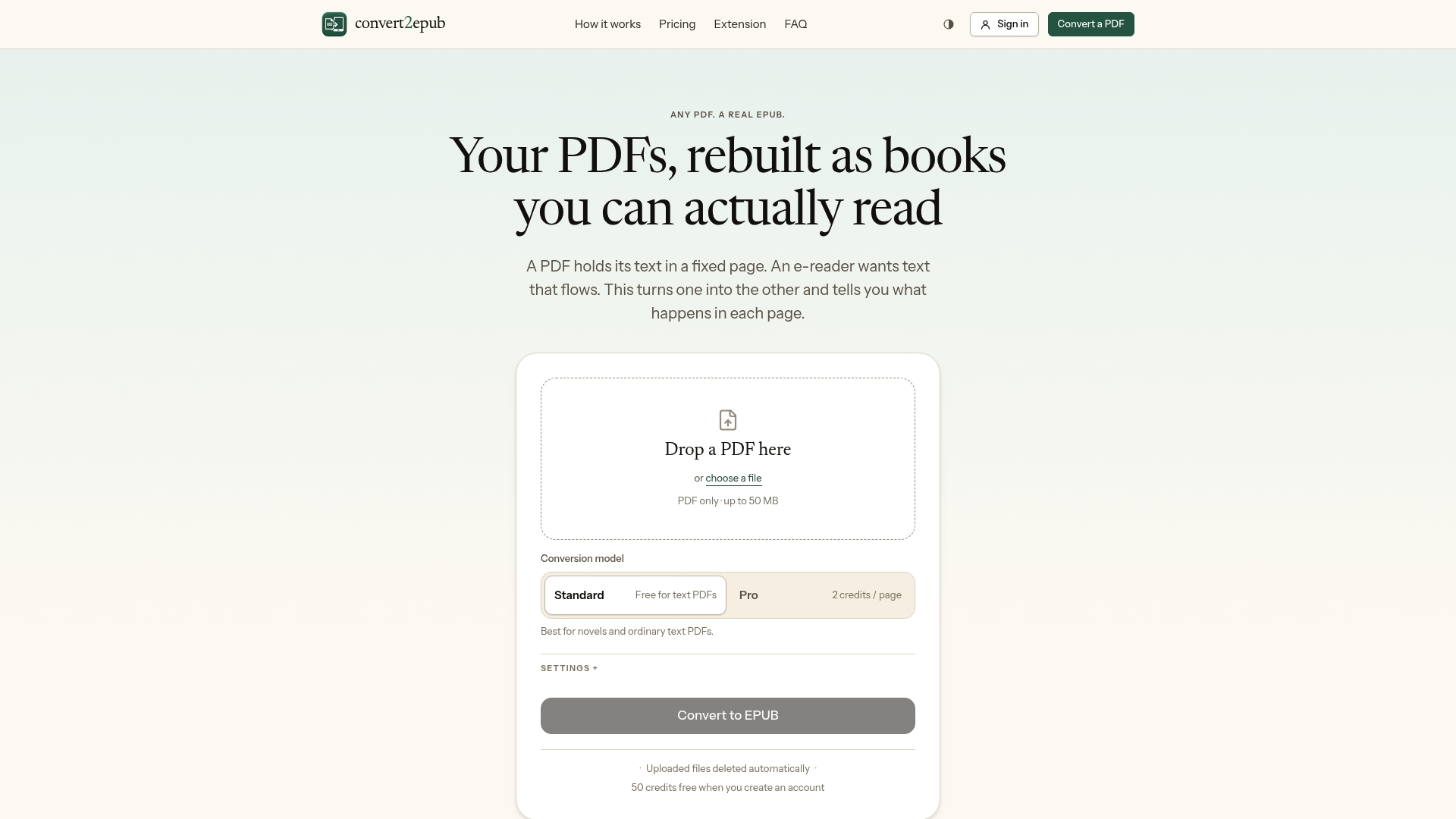
Basic text-based PDFs convert free. For scanned pages or documents with complex layouts, tables, equations, multi-column academic papers, the Pro mode's advanced OCR preserves that structure instead of turning it into a wall of garbled text. Advanced conversions run on a simple credit system, so you pay only for the pages that actually need the heavier processing. Pair that with the free Chrome extension for grabbing webpages, and you've got both halves of the offline reading problem covered from one account. Try a free conversion on your next PDF and see what the Pro OCR does with a page you assumed was unfixable.
Frequently Asked Questions
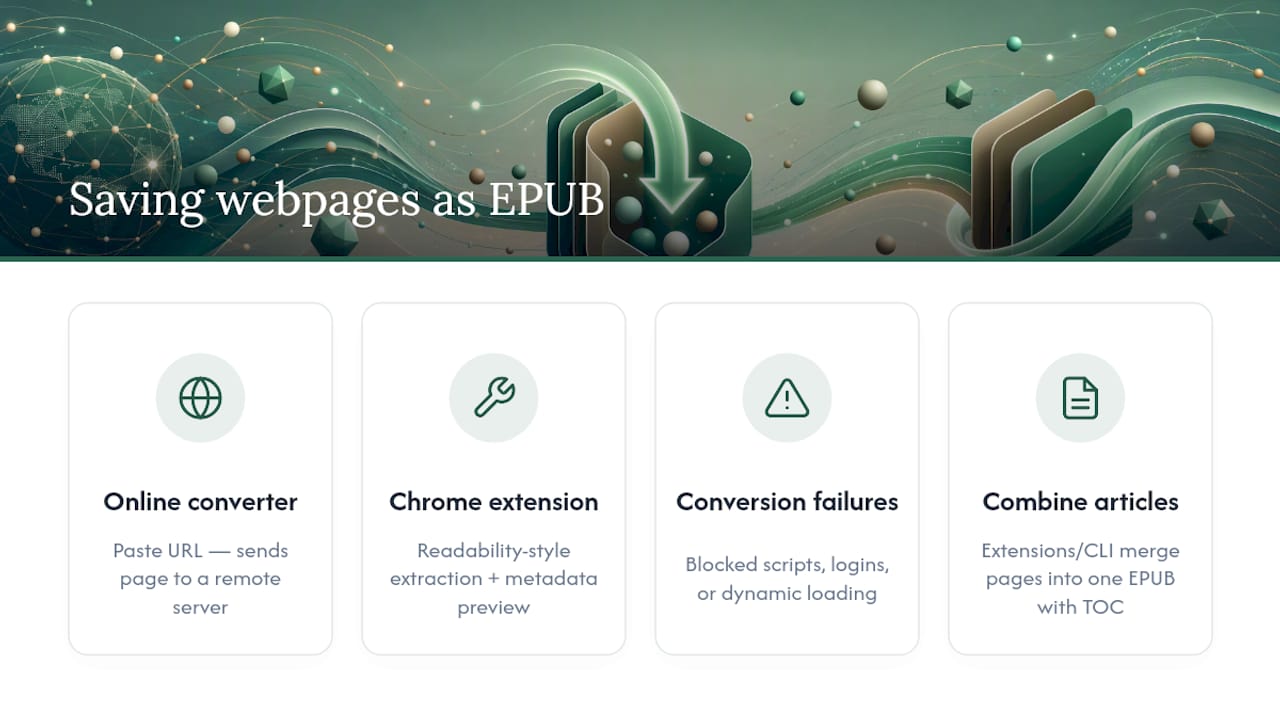
Can I save a webpage as EPUB without installing anything? Yes. Paste the page's URL into an online converter and download the result, though this sends the page content to a server rather than processing it locally.
What's the best web to epub Chrome extension for saving articles? Look for one built on Readability-style extraction with a metadata preview, like the tools referenced in the EPUB Creator documentation, since previewing title and author before download catches most errors.
Why do some webpages fail to convert to EPUB? The page may block script injection, sit behind a login wall a server-side tool can't access, or load content dynamically after the initial page load. Copying the rendered HTML manually usually works around this.
Can I combine several web articles into one EPUB book? Yes. Browser extensions with a "build a book" mode and CLI tools that accept a URL list can both merge multiple pages into one file with a shared table of contents.
Does Convert2epub work for webpages or only PDFs? Convert2epub's core service focuses on PDF-to-EPUB conversion with OCR, while its free Chrome extension covers webpage-to-EPUB saves.