

Yes, a scanned PDF can become a clean, reflowable EPUB, and most readers get there with an OCR-first pipeline: software reads the text off the scanned page images, then rebuilds that text into proper EPUB3 chapters instead of leaving it trapped as a photo of a page. You have three practical routes to that result:
- Cloud/automatic tools — fastest setup, handles messy scans well, usually charges per page.
- Local desktop GUI apps — no coding, keeps files on your machine, good middle ground.
- CLI or developer pipelines — full control over OCR settings and layout rules, steeper learning curve.
Privacy and per-page cost are the two questions that actually decide which lane fits you. If the document is sensitive, local wins. If it's a 400-page scanned textbook full of tables, cloud OCR with layout detection saves you hours. One data point worth knowing before you commit to a big batch: some OCR-based pipelines report costs as low as about $0.004 per page, which can affect the cost considerations on whether to test small or run the whole book.
Key Takeaways
An OCR-first pipeline that preprocesses, recognizes layout, rebuilds structure, and validates output is what turns a scanned PDF into a genuinely readable EPUB.
| Point | Details |
|---|---|
| Match tool to document | Cloud suits fast, complex scans; local suits private or sensitive files; CLI suits batch control. |
| Preprocess at 300 DPI | Deskew and crop pages before OCR to reduce recognition errors. |
| Use layout-aware OCR | Block detection separates headings, paragraphs, and tables for cleaner reflow. |
| Always proof and validate | Check the TOC manually and run epubcheck before trusting the final file. |
| Test before batch conversion | Run 10 to 20 pages first to measure OCR accuracy and cost. |
| Convert2EPUB for scanned fidelity | Offers standard and Pro OCR modes built to preserve tables and equations in scanned documents. |
Table of Contents
- Choosing a Scanned PDF to EPUB Workflow That Fits You
- How Do You Convert a Scanned PDF to EPUB Step by Step?
- What Features Should a PDF to EPUB Converter Have?
- Fixing the Most Common Scanned PDF Conversion Problems
- Weighing Local vs. Cloud OCR Costs and Privacy
- What Actually Matters When You Convert a Scanned Book
- Get a Scanned PDF Into EPUB Without Losing the Hard Parts
- Frequently Asked Questions
- Sources
Choosing a Scanned PDF to EPUB Workflow That Fits You
Not every scanned document needs the same tool. A 20-page scanned contract and a 500-page scanned chemistry textbook with equations are two different jobs wearing the same file extension.
- Cloud/automatic converters work best for straightforward scans: novels, memoirs, reports with mostly linear text. You upload, wait, download. The tradeoff is that your pages briefly leave your device and pass through someone else's OCR API.
- Local GUI applications suit anyone converting scanned material regularly and wanting an interface without touching a terminal. Projects like reepub, which runs Apple Vision OCR entirely offline on macOS, keep every page on your own hardware.
- CLI or developer pipelines make sense if you're batch-converting dozens of scans, need to tune OCR parameters, or want to chain OCR with a tool like Pandoc for the final EPUB assembly.
Privacy-sensitive documents (medical records, legal files, unpublished manuscripts) point you toward local or offline tools regardless of convenience. Speed and complex layouts (dense tables, multi-column academic PDFs) tend to favor cloud services running more advanced recognition models.
Pro Tip: Before committing to a 300-page conversion, run 10 to 20 representative pages through your chosen tool first. Check the OCR error rate and skim the resulting EPUB on an actual e-reader. It takes fifteen minutes and can save you from redoing an entire book.
How Do You Convert a Scanned PDF to EPUB Step by Step?
The actual mechanics break into five stages, and skipping one is where most bad conversions go wrong.
1. Preprocess the pages. Render each scanned page as an image at roughly 300 DPI. Lower resolution starves the OCR engine of detail; much higher just slows things down without meaningful gains. Crop out scanner margins, deskew tilted pages, and split any spread that captured two pages in one image.
2. Run layout-aware OCR. Skip OCR tools that dump everything as one undifferentiated text blob. Modern pipelines use block-level layout detection to separate headings from body paragraphs from tables and captions before recognition even runs, which is what lets the pdf2epub-paddle project preserve reading order in complex scanned books.
3. Rebuild as EPUB. Convert the structured OCR output into chaptered XHTML files, generate a table of contents, and embed images and figures where they actually belong in the flow. Tools like pdf-craft go further here, rebuilding tables and equations as native HTML or LaTeX markup rather than flattening them into images, and stripping running headers and page numbers automatically.
4. Proof the result. This is the step people skip and regret. Open the generated TOC and check that chapter breaks land where they should. Spot-check five or six pages against the original scan for garbled words or misplaced paragraph breaks.
5. Validate and export. Run epubcheck against the file to catch manifest or spine errors before they show up as a broken book on a device. Then load it onto an actual phone or e-reader, not just a desktop viewer.
| Stage | What Can Go Wrong If Skipped |
|---|---|
| Preprocess | Blurry OCR input, missed text on tilted pages |
| OCR | Headings and body text merge into one paragraph |
| Rebuild | Tables collapse into unreadable strings of numbers |
| Proof | Wrong chapter order, undetected OCR errors |
| Validate | File opens with formatting errors or fails on some readers |
Pro Tip: Never trust a conversion you haven't opened on the device you'll actually read it on. Desktop EPUB viewers are far more forgiving than a Kindle or Kobo.
What Features Should a PDF to EPUB Converter Have?
A converter worth your time for scanned documents should check these boxes:
- Layout-aware OCR with block detection, not single-pass text dumping.
- An interactive or reviewable table of contents before final export.
- Native handling for tables and diagrams, either as real HTML or cleanly cropped images.
- EPUB3 output with editable metadata (title, author, language tags).
- Built-in or pipeline-compatible validation against the EPUB spec.
On privacy, you're choosing between fully offline OCR, which keeps files on your hardware but depends on your device's processing power, and BYOK (bring your own key) setups, where you supply your own OCR API credentials so a conversion service never stores them. Cloud processing without BYOK is the most convenient option and usually the least private.
Convert2EPUB is built specifically around this OCR-first, high-fidelity approach for scanned material. Its standard mode handles straightforward scanned text, while the Pro mode applies deeper recognition specifically for equations and tables, the two elements that break most generic converters. It supports multiple languages for OCR, offers adjustable output settings for different e-reader devices, and includes a Chrome extension for converting web pages directly to EPUB. For readers converting scanned textbooks or technical reports, the blog covers deeper guidance on preserving layout during conversion.
A layout that survives conversion, with tables that stay tables and equations that stay readable, is the actual bar for a "good" scanned PDF conversion. Anything less just moves the file format problem without solving it.
Fixing the Most Common Scanned PDF Conversion Problems
"OCR soup," where paragraphs merge into unreadable blocks, usually traces back to OCR settings that ignore line geometry and punctuation cues. Pipelines that apply post-processing heuristics, checking indentation, sentence-ending punctuation, and line spacing, rebuild paragraph breaks far more reliably than raw OCR output.
Broken chapters almost always mean the TOC generation misread a heading style or missed one entirely. Manually reviewing and adjusting the TOC before final export catches this every time.
For tables, you have three real options depending on volume: table-detection OCR for a book full of them, manual rebuilding for a handful of critical ones, or straight image extraction if the tables are decorative rather than data you need to search or resize.
- Merged text: adjust OCR line-break settings or switch to a layout-aware engine.
- Missing figures: check if the tool cropped and embedded images, or dropped them entirely.
- Bad chapter breaks: manually edit the TOC before exporting.
- Consistently garbled pages: rescan at higher DPI rather than fighting the OCR output.
Pro Tip: If one page in an otherwise clean scan comes out garbled, don't waste time tweaking software settings. Rescan just that page at a higher resolution. It's usually faster than debugging OCR parameters.
Weighing Local vs. Cloud OCR Costs and Privacy
Local OCR keeps every page on your own device, which matters if you're converting anything you wouldn't want passing through a third-party server. The tradeoff is speed: your hardware, not a data center, does the heavy lifting, so a 400-page scan on a modest laptop can take a while.
Cloud OCR flips that equation. It's fast and often handles messy or low-quality scans better because the underlying models are larger, but you're paying per page and sending your document elsewhere temporarily. Some pipelines report costs around $0.004 per page for API-based OCR, which is inexpensive at book scale but adds up across a large personal library.
BYOK sits in between: you supply your own OCR API key, so a conversion service processes your file without storing your credentials or building a customer database tied to your usage.
- Sensitive documents: go local or fully offline.
- Large batch, low sensitivity: cloud OCR is usually faster and cheaper per hour of your time.
- Want cloud convenience without a stored account: look for BYOK support.
Test 10 to 20 pages first, check the error rate, and only then commit to a full batch conversion.
What Actually Matters When You Convert a Scanned Book
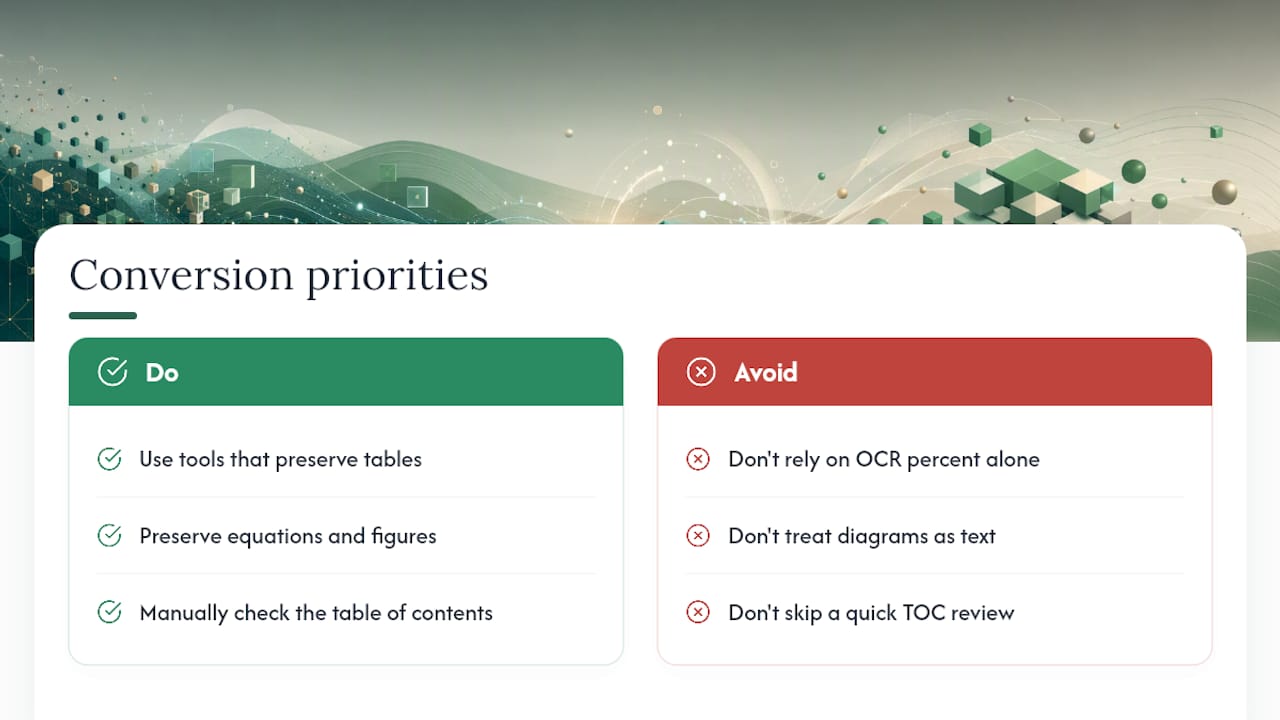
Most advice on this topic obsesses over OCR accuracy percentages, as if a 98% word-recognition rate guarantees a good EPUB. It doesn't. A page can be OCR'd almost perfectly and still produce a broken book if the table on that page collapses into a string of numbers with no structure, or if a diagram gets swallowed by the text layer instead of preserved as an image.
The conventional wisdom undersells structure and oversells raw text accuracy. A scanned novel with slightly imperfect OCR is still readable. A scanned textbook with perfect OCR but a mangled equation is useless to the student who needed it.
If you take one thing from this, prioritize tools that treat tables, equations, and figures as distinct objects to preserve, not just text to extract. Then put a human eye on the table of contents before you trust the final file. That five-minute check catches more real problems than any amount of OCR engine tuning.
Get a Scanned PDF Into EPUB Without Losing the Hard Parts
If your scanned document is mostly plain text, several of the workflows above will get you a usable EPUB with some patience. But if it's a textbook, a technical report, or anything with tables and equations you actually need to keep intact, that's the exact case Convert2EPUB was built to solve.
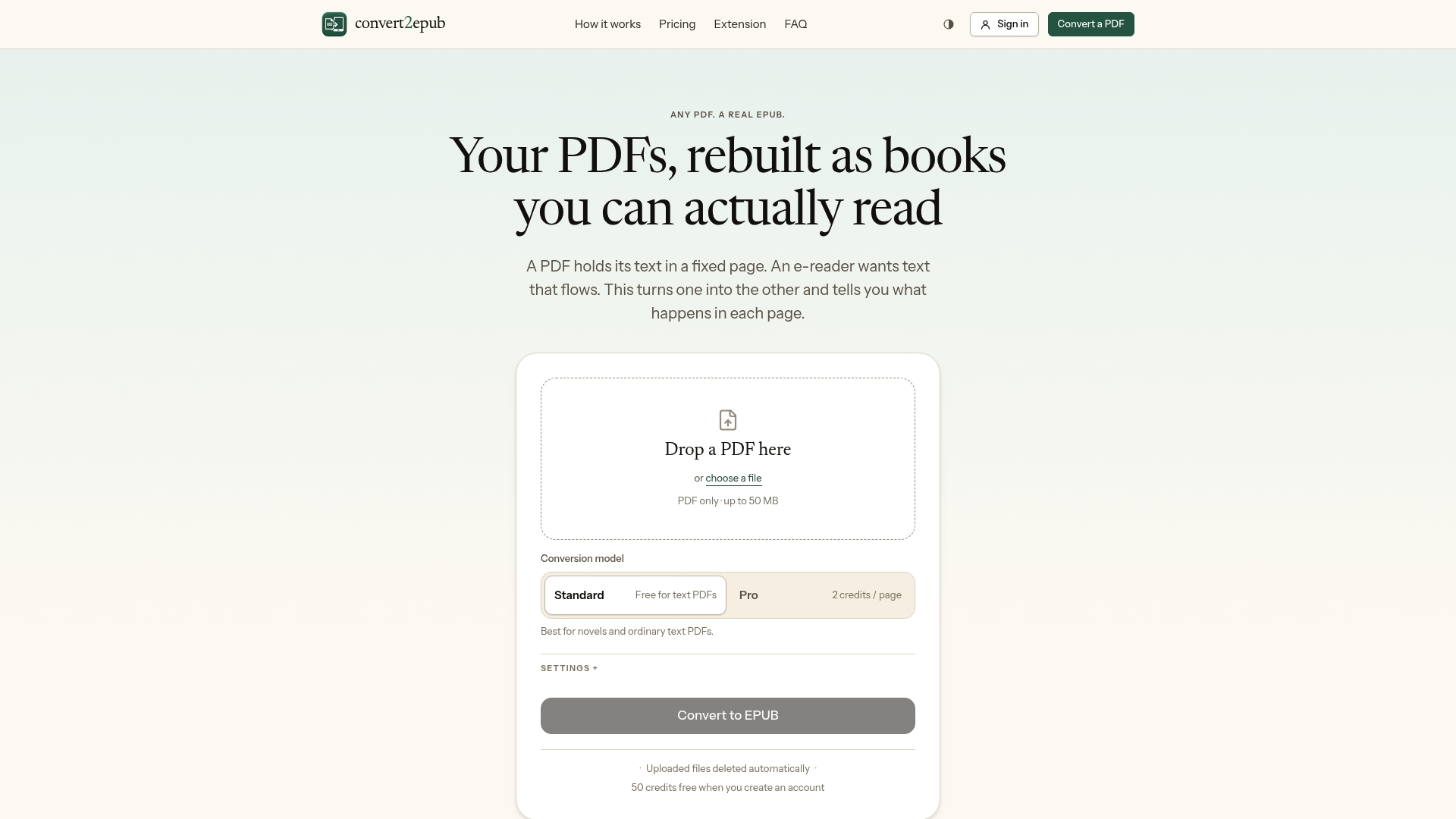
Its standard mode handles the OCR work for every day scanned pages, while Pro mode applies deeper recognition specifically to preserve equations and tables as usable content instead of flattened images. You choose output settings suited to your specific e-reader, and credits apply only to the pages you actually need converted, so a short scanned chapter doesn't cost the same as a 500-page textbook. If you've been putting off converting a scanned book because you assumed the tables would come out broken, try converting it on Convert2EPUB and see the result before committing to a larger batch.
Frequently Asked Questions
Can you really convert a scanned PDF to EPUB, or only text-based PDFs? Scanned PDFs convert fine as long as the workflow includes an OCR step. A text-based PDF already has selectable text, so it skips OCR entirely; a scanned PDF is just a page image and needs recognition first.
What's the best PDF to EPUB software for scanned documents specifically? Look for tools built around layout-aware OCR rather than generic conversion. Convert2EPUB, pdf-craft, and pdf2epub-paddle all specialize in scanned material, while general converters often struggle with tables and figures.
Do I need to edit the OCR text manually after conversion? Usually a little. Even good OCR occasionally misreads a word or breaks a paragraph oddly. Spot-checking a handful of pages and fixing obvious errors takes far less time than re-running the whole conversion.
Will a scanned document to EPUB conversion preserve images and diagrams? Good tools crop and embed diagrams as images within the reflowed text rather than trying to OCR them as text. Confirm this behavior before converting anything image-heavy.
Is local OCR conversion actually private, or does data still leave my device? Fully offline tools like reepub process everything on your own hardware with no network calls. Cloud tools, even with BYOK, still send page images to an API for recognition unless you're specifically running a local model.